What Does Building a Stand-Alone Roku TMS Search Feed Cost?
Instant TV Channel's pricing for building a stand-alone TMS Search Feed is the same as for a "Commercial" Roku app, $49.95 per month.
Search Feeds are billed as a monthly subscription.
The monthly charge will occur whether or not the TMS Search Feed is submitted to or approved by Roku.
A TMS Search Feed is included free with each "Commercial" app.
For information about constructing a free Roku TMS Search Feed with a "Commercial" SDK app,
click here.
What is Roku Search?
Roku Search is located on the main menu of the Roku home-screen,
and allows Roku users to search for a particular movie,
TV show/special, or actor/actress/director.
Roku Search then allows users to see a list of providers,
choose a provider's app to launch,
and go directly to the selected piece of content.
Roku Search is only available in English and Spanish,
and only available in the U.S., Canada (English only), Ireland, the U.K, and Latin-America countries.
Roku Search only supports full-length movies and TV series, episodes, and specials.
Roku Search does not support short-form or clip content.
A Roku Search Feed is the way in which you provide Roku with information about what
video content is in your app,
so that it can be included in the Roku Search results.
When your app has a Roku Search Feed,
all Roku users in the countries or regions that you specify will be able to find
content in your app,
and will be able to quickly install your app if it is not already installed.
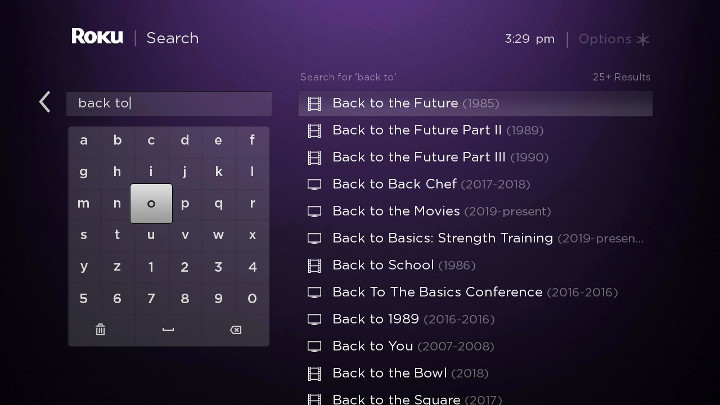
Roku Search Keyboard
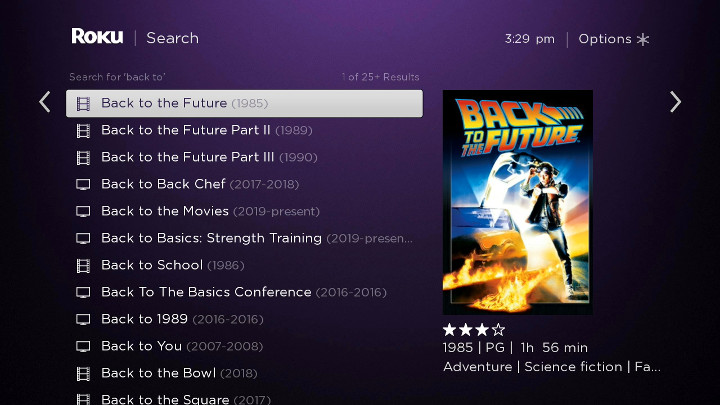
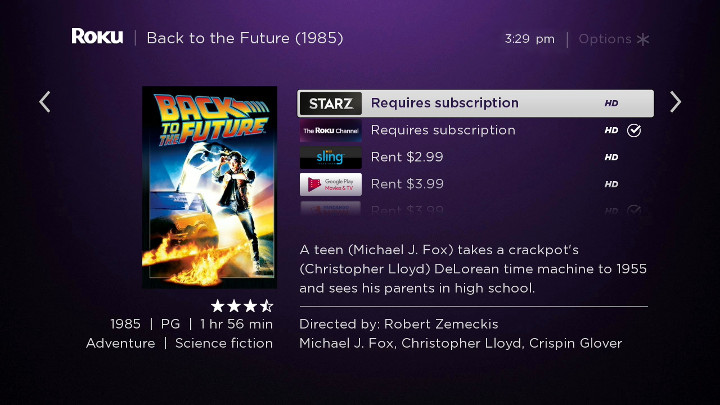
Result Selected from Roku Search Keyboard
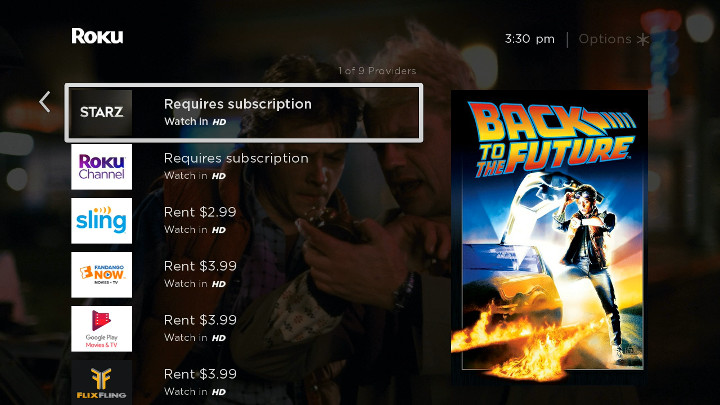
App List for Selected Result - With 143w x 112h Teaser Logos
App List for Selected Result - With 165w x 60h Small Logos
Various Roku firmware versions may display the search results slightly differently.
The app poster artwork in the results is provided by the app developer (you).
Roku currently requires that two separate app logo sizes are provided, a 143x112 "Teaser Logo" and a 165x60 "Small Logo".
Creating an Empty Roku TMS Search Feed
The following steps will create a simplified "Commercial" SDK app in your Instant TV Channel account.
The app will contain information about each video item to be included in the TMS Search Feed.
The app will not be configured as a complete and publishable SDK app because it is only used as a container for the information
needed to generate the TMS Search Feed.
Browse to Instant TV Channel at www.InstantTvChannel.com and log into your account,
or create a new account if you do not already have one.
From the menu along the left side of the page, select Apps.
If this is a new account,
you will already have a brand new app waiting to be
filled with content.
If you want to start fresh:
Click the New App button at the bottom of the app list.
At the top of the page,
verify that the App Type is "SceneGraph".
At the top of the page,
click the Confirm button.
Your new Roku app which will contain the TMS Search Feed information is at the bottom of your app list,
and should be highlighted in yellow.
Click the plus symbol next to the app name to upgrade it to "Commercial".
Follow the on-screen instructions to initiate the monthly $49.95 charge for the TMS Search Feed.
From the menu along the left side of the page, select Theme.
This is the Theme Editor.
If this was a published app, the Theme Editor would allow you to change the look and feel of your Roku app.
Since we are only building a TMS Search Feed,
we'll just be changing the app's title.
In the top parameter box,
change "My App" to a unique name,
for example "My Search Feed 1".
This will be helpful if there is eventually more than one Search Feed in this account.
If Show More Options on the
Instant TV Channel Account Page is set to "Full",
there will several Search-related parameters on the Content page and at the bottom of the Theme page.
For now we'll leave these set at their default values.
These parameters are described more fully later on this page.
You can change the parameters at any time without resubmitting the feed to Roku.
Adding Video Items to a Roku TMS Search Feed
The following steps will add a video item to a Roku Search Feed by
creating a new video item in the Instant TV Channel content tree,
and then matching the new video item to an entry in the Gracenote TMS database.
Click the Content link on the left side of the Instant TV Channel page.
This will display the Content page
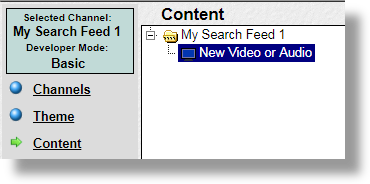
The content tree,
shown in the upper-left window,
will initially have a single video item in it.
To add more video items later,
right-click on the yellow folder,
then select New Video or Audio.
The yellow folders (lists and grids) can optionally be used to organize the video information within Instant TV Channel,
but the folder types and the order and location of the videos within the folders have no effect if the app is only being used to contain TMS Search Feed information.
New Content Tree with Single Video Item
Optional:
In the parameter section on the bottom half of the page,
locate the DeepLinkId parameter and enter the name of the video item's Deep Link ID.
Press the TAB key or use the mouse to click anywhere outside of the textbox after you enter the ID.
If you do not provide a Deep Link ID then the automatically generated App UID displayed in the upper right poster window will be used.
In the parameter section on the bottom half of the page,
locate the Title parameter and enter the name of the movie or TV show.
Press the TAB key or use the mouse to click anywhere outside of the textbox after you enter the name.
The Title spelling must be correct, including special characters such as punctuation marks, or a match may not be found.
If in doubt, check the spelling of the item in an online database such as IMDB.
If the video is an Episode,
you must also provide a Series Title in the TitleSeries parameter box before a match can be found.
The TitleSeries parameter,
located directly beneath the Title parameter,
is only visible if Show More Options on the Instant TV Channel Account Page is set to "Full".
Both the Title and TitleSeries parameters can be changed after a Gracenote match has been selected without affecting the matched item or the Search Feed.
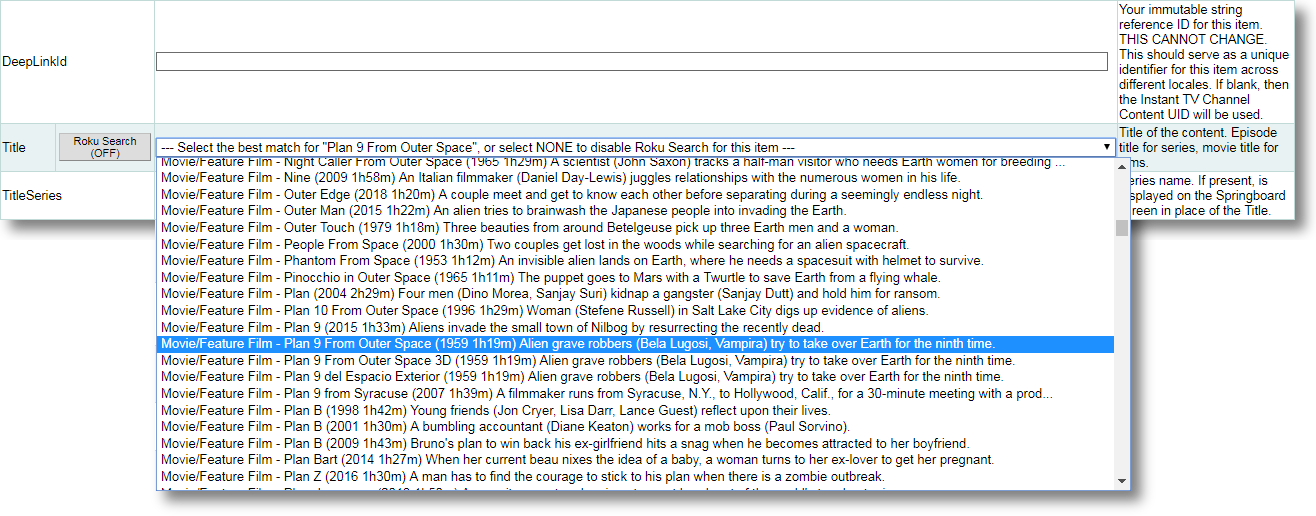
The following example screens will match the "Plan 9 From Outer Space" movie to the corresponding entry in the Gracenote TMS database.
Roku Search Button - Before Clicking
Click the Roku Search button.
The Title parameter will be temporarily replaced with instructions.
Roku Search Button - Clicked
After clicking the button,
examine each item in the list of possible matches and select the correct item from the Gracenote TMS database.
Roku Search Button - Possible Matches Displayed
If your video is not in the list,
click the Roku Search button again to restore the original title,
then try again after correcting your movie or TV show title.
Do not select an item which is not a valid match.
Doing so will result in an incorrect Search Feed and may result in Roku removing your app from Roku Search.
It's OK if some of the video items in your app cannot be matched.
These items will not be included in the Search Feed.
When a match has been selected the Roku Search button changes color to green,
and "(OFF)" changes to "(ON)",
and a search icon - a magnifying glass - will appear next to the video item in the content tree.
Roku Search Button - Match Selected
Matched Content Item in Content Tree
The Roku Search button can be clicked again to change or verify the selected match,
or to turn off Roku Search for this video item.
The last entry in the list of possible matches is NONE which if selected will turn off Roku Search for the video item.
Repeat the above steps for each video item to be added to the Roku Search Feed.
As an alternative to entering each video's Title and Deep Link ID one at a time,
video titles and IDs can be imported via JSON or XML files as described here.
Obtaining the Roku Search Feed URL
The Roku Search Feed is generated "on-the-fly" whenever Roku requests it,
so it is not necessary to generate, re-generate, or refresh the Search Feed.
All that is necessary is to obtain the Search Feed's URL so that it can be provided to Roku.
On the "Apps" page observe that there is a "Search" column with a magnifying-glass icon for each Commercial app.
Superimposed on the magnifying-glass icon is a 3-digit Roku Search ID number.
The Roku Search ID numbers should be unique for each app within an Instant TV Channel account,
although multiple older Commercial apps may have a temporary ID of "000".
Any app that will be used with Roku Search must have a unique Roku Search ID,
otherwise feed information for the wrong app may be incorrectly provided to Roku.
App with Search ID of 000
App with Search ID of 123
Click the magnifying-glass icon for the app that will be used with Roku Search.
If necessary, change the Roku Search ID to a unique value and click the Update Search ID button.
For example if the Roku Search ID is "000", change it to any other unique 3-digit value.
The value of the Search ID can be set to any unique 3-digit number.
If the Search ID is not unique then a warning message will be displayed.
The Roku Search Feed URL is displayed at the top of the page.
Save this URL, it will be needed for the validation and submission steps on the Roku website.
Note that it may take up to 24 hours for the automatically-generated search beta app and associated search feed to be available on your test Roku devices.
As part of the search feed submission process, you must upload two small images to Roku.
Roku's own documentation about these two images may be inconsistent!
Provider List Logo (143x113 pixels)
The image must be exactly 143 pixels wide by 113 pixels high.
Format must be PNG.
Appearance should closely resemble the 540x405 Streaming Store icon, except for text arrangement.
Corners must be rounded.
If a gradient is used, the light source should be from the top of the artwork.
143x113 Provider List Logo
Teaser Logo (165x60 pixels)
The image must be exactly 165 pixels wide by 60 pixels high.
Format must be PNG.
Appearance should closely resemble the 540x405 Streaming Store icon, except for text arrangement.
Corners must be square.
If a gradient is used, the light source should be from the top of the artwork.
165x60 Teaser Logo
After testing, you must email partnersuccess@roku.com to request activation of your search feed.
Make sure the email is sent from the same email address that is associated with your Roku Developer Account.
Use the following subject line:
Search Feed for App Name
The body of the email should include the following information:
The statement:
"This feed has been validated and tested end-to-end successfully. This is a TMS ID feed."
The name of your public app.
The public app ID.
The public app access code.
The SearchBeta app ID.
The SearchBeta app access code.
A list of several content titles, so Roku can verify search functionality on their end.
Updating the Search Feed
When updating the search feed,
for example if new searchable content has been added to the app,
it is necessary to re-ingest the feed on the Roku "Search feeds" page.
Monitor the "Last feed ingestion" date to verify that the updated feed has been accepted.
This may take up to 24 hours.
You do not need to re-enter the feed URL or send another email to Roku unless the feed URL changes.
Deleting a Search Feed
To cancel a Search Feed's monthly billing and delete the Search Feed,
click the delete button on the Apps page next to the app that contains the Search Feed information,
then click the CONFIRM button.
Any credit remaining for the month after deleting a Search Feed will remain in your Instant TV Channel account and will be applied to future monthly charges.
You may want to consider making a free clone of the Search Feed by clicking the clone button before deleting it,
in order to preserve your work. The clone can be upgraded back into a useable Search Feed at any time.
The following parameters are available on both the Theme page and on the Content page in individual video items.
If the video item parameter on the Content page is set to "Theme" or is blank,
then the Theme page parameter will be used,
otherwise the video item parameter on the Content page takes precendence over the Theme page parameter.
Each video item can have multiple sets of parameters, one set for each available Roku Search region.
These parameters will need to be configured if the app uses "In-App Purchasing".
RokuSearchCurrency - The currency used if purchasing videos.
This parameter selects the currency symbol displayed in the on-screen Roku Search results,
but it does not determine the actual currency type charged for the video.
RokuSearchLicense - The Payment method used if purchasing videos.
This selection is displayed in the on-screen Roku Search results,
but it does not determine the actual payment method for the video.
RokuSearchPrice - The price that is charged for each video.
This price is displayed in the on-screen Roku Search results,
but it does not determine the actual amount charged for the video.
RokuSearchQuality - The quality of the videos.
This parameter selects the symbol displayed in the on-screen Roku Search results,
but it does not determine the actual video playback quality.
RokuSearchRegion - This parameter determines the region in which videos will be visible for Roku Search.
It only affects visibility within the Roku Search results,
it does not affect the visibility of the video within the app.
The default setting is "All" which causes the app to be visible in all available Roku Search regions.
If any of the Roku Search parameters vary on a per-region basis,
then regions and associated settings must be configured separately within each video item on the Content page.
The following parameter is available on the Theme page.
This parameter may need to be configured if the app uses a language other than English.
RokuSearchDescription - This parameter filters the possible Gracenote matches by the description language,
and will cause the on-screen Roku Search description for matched item to be displayed in the selected language.
This parameter only affects NEW matched items,
it has no effect on already-matched items.
The default setting is "en" (English).
The following parameters are available on the
Instant TV Channel Account Page.
Usually these parameters will not need to be changed.
Show Roku Search Adult Content - This parameter is initially set to "No".
Change to "Yes" to allow Adult Content results to appear when matching videos to the Gracenote TMS database.
Show Roku Search Sports Content - This parameter is initially set to "No".
Change to "Yes" to allow Sports Content results to appear when matching videos to the Gracenote TMS database.
Because of the large number of sports items in the Gracenote TMS database,
setting this parameter to "Yes" may prevent non-sports results from appearing in the list of potential matches.
Roku Search Feed URL Style - This parameter determines which of two available Search Feed URL styles is displayed
when the magnifying-glass icon on the Apps page is selected.
The two Search Feed URL styles may be used interchangeably,
however it undesireable to change the Search Feed URL after it has been provided to Roku.
The "Specify a unique 3-digit ID..." option must be selected if your design flow uses clones to perform app updates,
as it allows the same Search Feed URL to be re-assigned to different instances of an app.
This is the default and recommended option which is used in the tutorial above.
The "Use the App UID..." option may be selected if your design flow always updates apps in-place,
and the published app always has the same 36-character App UID.
This option does not use the 3-digit ID.
Roku Search Match List Sort Order - This parameter determines the order in which the titles appear in the list of potential matches.
"Display the matches alphabetically" is the default.
"Display the matches best match first" often provides the matching item at the top of the list,
but can make it difficult to locate potential matches that are further down in the list.
The Roku Developer Forum is a useful resource for developers of SDK apps,
and is a great place to ask questions.
Want to know more about how to build an SDK Roku app?
Check out this
Roku Custom SDK Walk-Through for all of the details.
Instant TV Channel
Instant TV Channel is a cloud-based tool for Roku developers and content providers that shortens development time and eases maintenance after deployment.








 next to the app name to upgrade it to "Commercial".


 button on the Apps page next to the app that contains the Search Feed information,
then click the CONFIRM button.
button on the Apps page next to the app that contains the Search Feed information,
then click the CONFIRM button.
 button before deleting it,
in order to preserve your work. The clone can be upgraded back into a useable Search Feed at any time.
button before deleting it,
in order to preserve your work. The clone can be upgraded back into a useable Search Feed at any time.