Instant TV Channel provides several different Content Types to use when
constructing your Roku app.
There are two broad categories of Content Types:
Content Items and Lists.
Content Item - An audio or video stream,
an individual image or picture,
or a block of text.
The Roku player and Instant TV Channel currently support the following
file and stream types:
MP4 / MOV / M4V (H.264) video
HLS (HTTP Live Streaming) video
ISM (Microsoft Smooth Streaming) video
MP3 audio
PNG, JPG, and GIF images
The following icons are used in the Content Editor to represent various Content Items:
Video Content Item
Audio Content Item
Picture Screen Content Item
Text Screen Content Item
Picture and text Content Items are particularly useful for inserting
notices or images between videos in Automatic Play enabled lists.
List - A collection of Content Items
and/or other Lists.
A List appears on a Roku player as a row or
grid of Content Items.
There are several different types of Lists supported by
Instant TV Channel:
Horizontal List - A list of Content Items,
Grids, Series, MRSS Feeds, Vertical Lists, and other Horizontal Lists
displayed as a horizontal row on a Roku player screen.
Multiple levels of nesting are possible.
Content Items, Grids, Series, MRSS Feeds, Horizontal Lists, and Vertical Lists can exist together at the same level of a Horizontal List.
In the Content Editor,
a Horizontal List is represented by these icons:
A Horizontal List is similar to the roPosterScreen component in the Roku SDK.
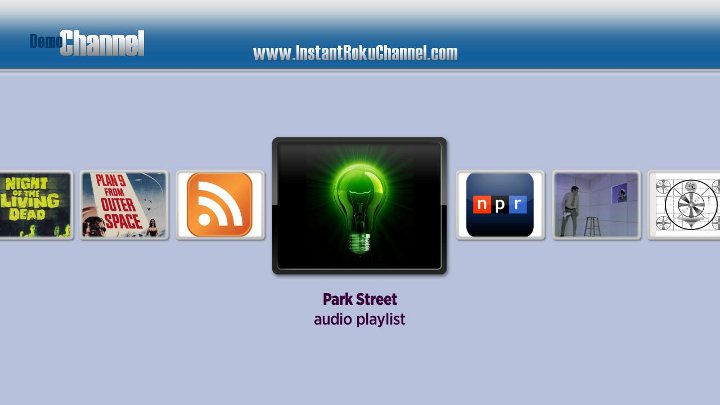
Horizontal List with Flat-style Posters
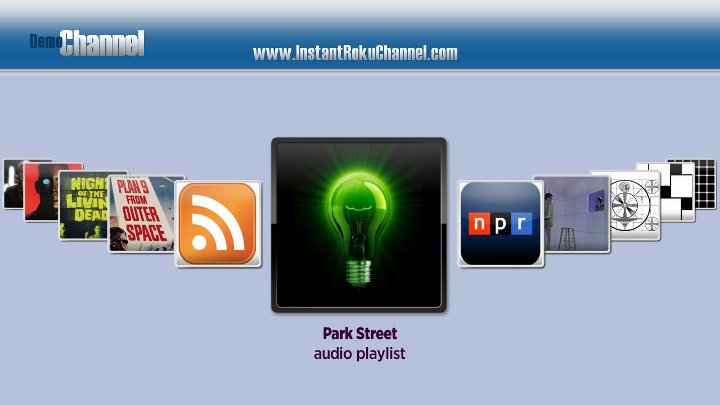
Horizontal List with Arced-style Posters
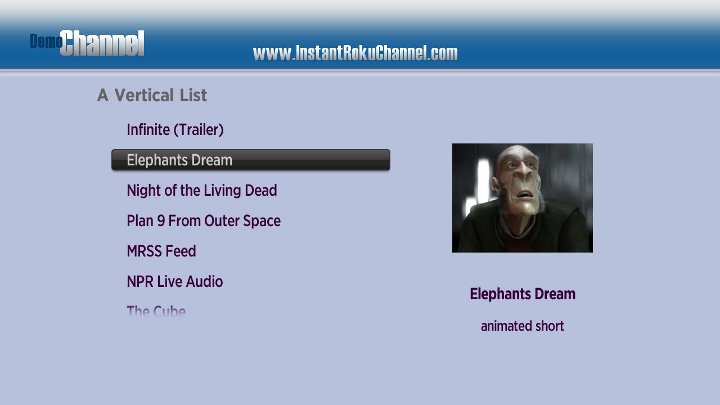
Vertical List - A list of Content Items,
Grids, Series, MRSS Feeds, Horizontal Lists, and other Vertical Lists
displayed as a vertical row on a Roku player screen.
Multiple levels of nesting are possible.
Content Items, Grids, Series, MRSS Feeds, Horizontal Lists, and Vertical Lists can exist together at the same level of a Vertical List.
In the Content Editor,
a Vertical List is represented by these icons:
A Vertical List is similar to the roListScreen component in the Roku SDK.
Vertical List
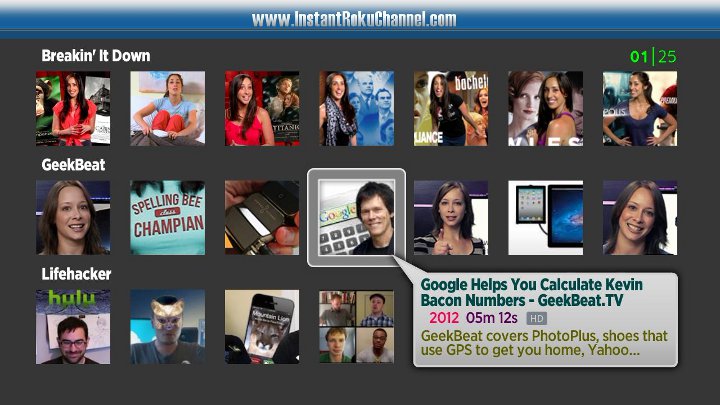
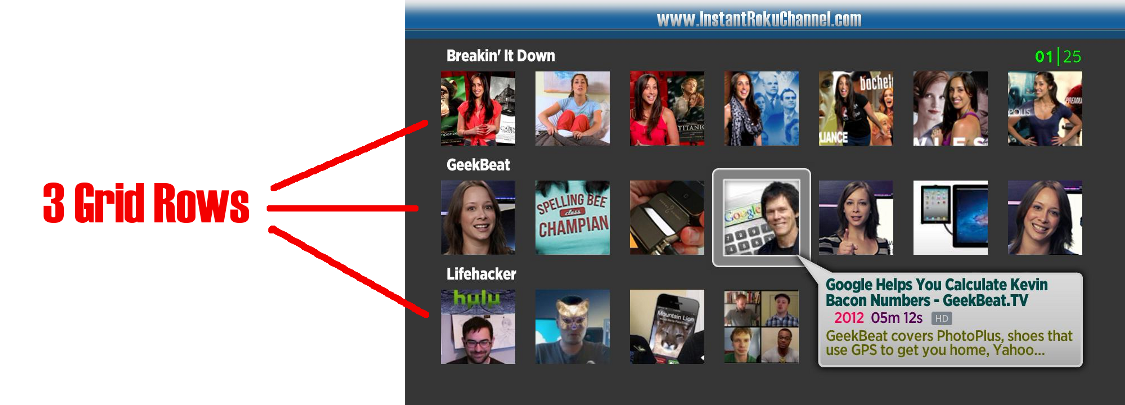
Grid - A list of one or more Grid Rows
displayed as a 2-dimensional grid on a Roku player screen.
A well-known example of a Grid is the Netflix app.
In the Content Editor,
a Grid is represented by these icons:
A Grid is similar to the roGridScreen component in the Roku SDK.
Grid with Square-style Posters
Grid Row - Contained within a Grid,
this is a list of video & audio Content Items,
Series, and MRSS Feeds.
In the Content Editor,
a Grid Row is represented by these icons:
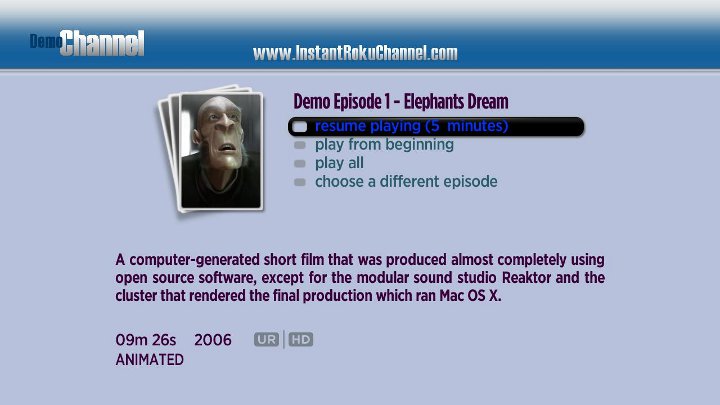
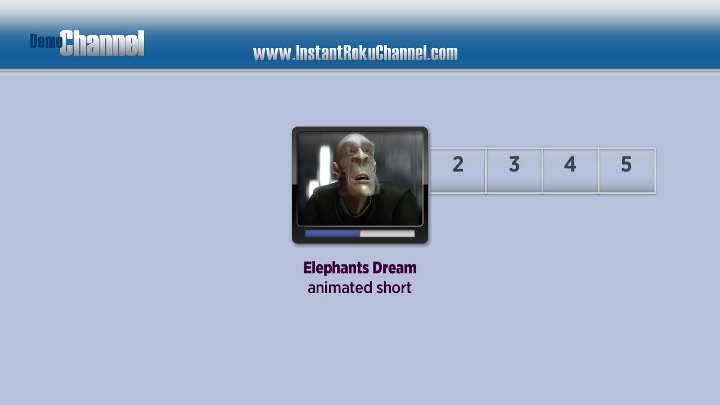
Series - A list of Content Items
that is initially displayed as a single Content Item.
Usually the Content Items are related,
for example episodes of a TV series.
A "Choose A Different Episode" button is provided to display
a menu of the episodes or related items.
In the Content Editor,
a Series is represented by these icons:
Just like the Horizontal List, a Series is similar to the roPosterScreen component in the Roku SDK.
Series List displayed as a Single Content Item
Series List displayed as Episodes
MRSS Feed - A Media RSS feed containing
links to one or more audio or video content items.
In the Content Editor,
an MRSS Feed is represented by this icon:
When used outside of a Grid, an MRSS Feed can be configured as either
a Horizontal List or a Series.
When used inside of a Grid, but not inside of a Grid Row,
an MRSS Feed will be displayed as a complete Grid Row.
When used inside of a Grid Row,
an MRSS Feed will be displayed as a Series.
A Top-Level Type is selected when you create a new app.
The Top-Level Type defines the top-level layout of the app.
After a Top-Level type has been selected for an app it cannot be changed.
There are currently three different Top-Level types:
SceneGraph or Classic - The most flexible of the available app types.
A SceneGraph or Classic app type is essentially a Horizontal List,
which consists of
video & audio Content Items, Grids, Series, MRSS Feeds, Vertical Lists, and Horizontal Lists.
A SceneGraph or Classic app can have Content Items nested many levels deep
inside Horizontal or Vertical Lists, Grids, Series and MRSS Feeds.
The outermost level of a SceneGraph or Classic app is always a Horizontal List.
Vertical -
A Vertical app type is essentially a Vertical List,
which consists of
video & audio Content Items, Grids, Series, MRSS Feeds, Vertical Lists, and Horizontal Lists.
A Vertical app can have Content Items nested many levels deep
inside Horizontal or Vertical Lists, Grids, Series and MRSS Feeds.
The outermost level of a Vertical app is always a Vertical List.
The outermost level of a Vertical app has an additional "vertical-background"
ListStyle option that can be used
to change the screen background depending on which selection is highlighted.
Amazon Instant Video is a well-known example of a Roku app that uses a Top-Level Type of Vertical.
Grid - A 2-dimensional grid of video & audio Content Items,
Series, and MRSS Feeds.
It is organized into one or more Grid Rows.
A Grid cannot contain Horizontal Lists, Vertical Lists, or other Grids.
Netflix is a well-known example of a Roku app that uses a Grid as its Top-Level Type.
Series - A list of episodes.
A Series app type contains only video & audio Content Items.
It cannot contain Horizontal Lists, Vertical Lists, Grids, MRSS Feeds, or other Series.
For more information about how to quickly build a Roku app using Instant TV Channel,
please see this
introductory guide.
Questions and comments about this Roku developer information can be emailed to .
Instant TV Channel
Instant TV Channel is a cloud-based tool for Roku developers and content providers that shortens development time and eases maintenance after deployment.

 Video Content Item
 Audio Content Item
 Picture Screen Content Item
 Text Screen Content Item